Beginning on July 28th, 2026 the ONE System will upgrade its Multi-Factor Authentication (MFA) platform to Auth0, a modern, SOC 2–compliant identity platform. This change will bring enhanced security to ONE and is intended to make our data more secure moving forward.
These changes include:
Every account will be required to enroll in Multi-factor Authentication (MFA) on their first sign-in after the change on July 28th, 2026. This applies regardless of whether you had Two Factor Authentication (2FA) enabled in ONE previously.
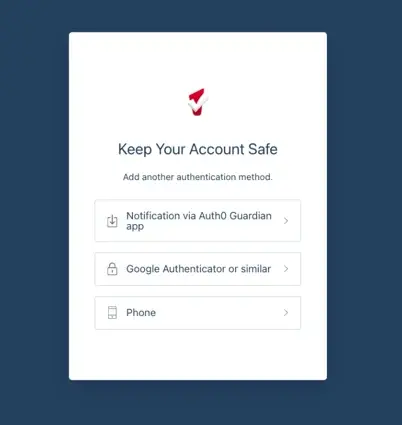
Supported authentication methods at launch include:
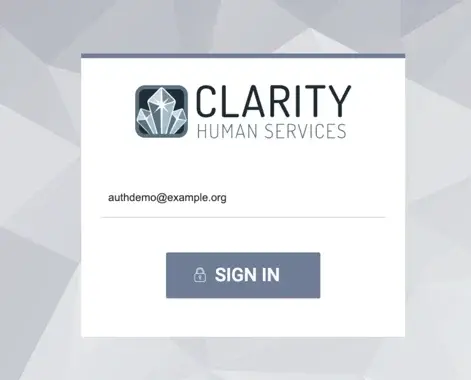
Step 1: Enter your email address on the ONE System sign-in page:
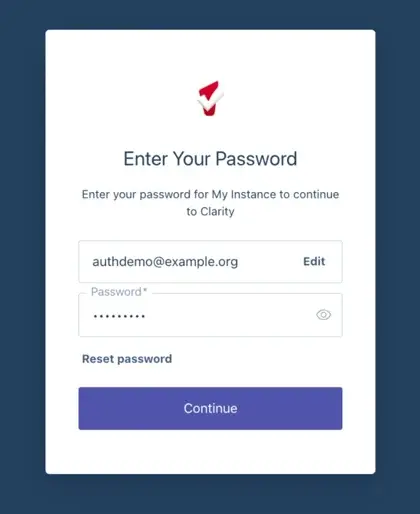
Step 2: You will be redirected to the Auth0 login page, where you will enter your ONE System account password:
Step 3: Upon first login with Auth0, you will be prompted to select your authentication method:
Step 4: Once the authentication method is set up, you will be prompted to re-authenticate the next time you log in:
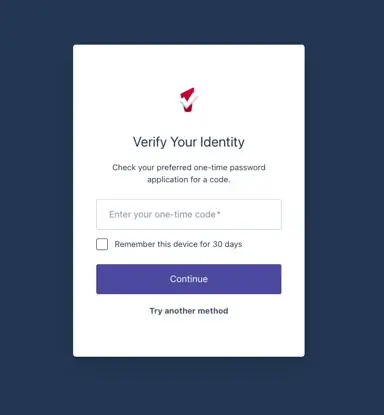
NOTE: If the Remember this device for 30 days option is checked, authentication will only be required after a 30-day grace period. If the Remember this device for 30 days option is not checked, you will be required to authenticate every time you log in.
Here is a list of some of the most frequently asked questions regarding this change that may be helpful if you are unsure about any aspects of the change:
Why do I use my email to sign in now?
What is this new login screen? Why was I redirected to another website?
Why am I being asked to register an MFA device?
Where did the 2FA toggle in my user settings go?
What if I’ve already set up 2FA in the ONE System?
What if the phone number on my ONE System user profile is different than the number I use for MFA?
How long does "Remember this device" last?


The ONE System is an online database that enables organizations to collect data on the services they provide to people experiencing homelessness and people who are at risk of homelessness.
© 2003-2026 Bitfocus, Inc. All rights reserved.
System Administration provided by Bitfocus, Inc.